
How to Collaborate Effectively Using Microsoft 365 Apps
Introduction
Working with Microsoft 365 can sometimes feel overwhelming, especially when trying to collaborate effectively with a team or manage a project. With so many tools available, knowing which app to use, when, and how they integrate seamlessly is key to a productive workflow.
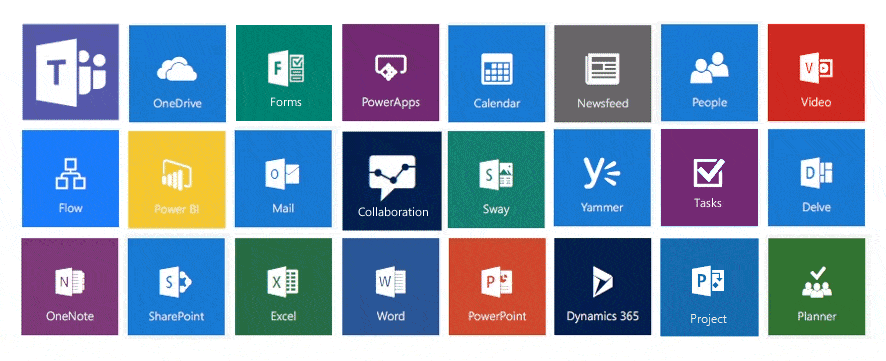
This guide walks you through how to set up a collaborative workspace using Microsoft Teams and extend it with tools like Microsoft Planner, Lists, Loop, and integrated file management. By the end, you’ll know exactly how to structure your team, manage tasks, and work on shared content—all within Microsoft 365.
Why Use Microsoft Teams as Your Collaboration Hub
When it comes to team collaboration, Microsoft Teams serves as the central hub. Unlike SharePoint, which primarily focuses on file storage, Teams allows for robust communication via channels, posts, and app integrations.
Steps to Create a New Microsoft Team:
- Open the Teams app and click the “+” icon to create a team.
- Name your team (e.g., “Christmas Collection 2025”) and set the appropriate privacy setting (public or private).
- Define your first channel—no more default “General” channel.
- Add team members and assign at least one co-owner for continuity in management.
Structuring Channels for Clear Communication
Organize your project workspace by creating relevant channels. For example:
- General Discussions
- Campaign Timeline
- Marketing Assets
- Team Discussions
These channels help segment conversations and keep workstreams organized.
Task Management with Microsoft Planner
Skip Excel and Outlook for task management—use Microsoft Planner. Here’s how:
- Add a new tab to your chosen channel and select Planner.
- Name your plan (e.g., “Christmas 2025”) and choose not to notify the team if preferred.
- Create “buckets” as project phases (e.g., Planning, Design, Execution, Review) or by team members for task ownership.
Assigning Tasks:
- Add tasks with due dates.
- Assign them to team members directly from the Planner tab.
- Include details such as priority, progress, and subtasks.
You can also view tasks in calendar format or through charts for visual tracking.
Creating Tasks from Posts
Sometimes, tasks emerge organically from conversations. Microsoft Teams allows you to convert a message into a Planner task:
- Hover over the message, click the three-dot menu, and select Create Planner Task.
- Choose the correct Planner board and bucket.
- Assign the task, set a due date, and save.
This feature ensures that nothing slips through the cracks during team discussions.
Collaborate on Content with Microsoft Loop
When drafting statements, plans, or ideas, Microsoft Loop components allow multiple team members to edit live content simultaneously:
- Start a post and select the Loop icon.
- Add your content and title.
- Adjust access settings so your team can edit.
- Post it directly in the channel and watch in real-time as teammates make contributions.
This eliminates confusion around document versions and ensures everyone is aligned.
Track Leave with Microsoft Lists
For internal team tracking like annual leave, use Microsoft Lists:
- Add a tab in your “Team Discussions” channel and select Lists.
- Choose to create a Blank List and name it (e.g., “Annual Leave Tracker”).
- Customize columns for staff names, leave dates, duration, etc.
This centralizes internal admin without needing external tools.
Smart File Management in Microsoft Teams
Stop saving documents locally. Save directly to Teams from Word or any Office app:
- Go to File > Save As in Word.
- Select your Teams workspace and choose the relevant channel folder.
- Save your file, which will then be accessible to the whole team.
To notify the team, create a new post and attach the file using “Browse Teams and Channels”. Teams will share it as a link, ensuring a single source of truth.
Conclusion
Microsoft 365 offers a powerful suite of tools, but the real value comes when these tools are combined into a unified collaboration strategy. Whether you’re managing tasks, drafting content, tracking leave, or sharing files, integrating everything within Microsoft Teams creates a smoother, more productive workflow.
With these steps, you can confidently build a collaborative environment tailored to your team’s goals, whether it’s a short-term project or an ongoing initiative.
If you’re ready to put these tools to work, you can get Microsoft 365 from Uplicom, your trusted provider for reliable licensing and professional support.