
Many Nigerian companies pay for Microsoft 365 every month or year, yet use only a fraction of what the platform actually offers. For most teams, “Microsoft 365” simply means Outlook, Word, Excel, Teams, and maybe OneDrive. But tucked inside the same subscription is a set of tools that can automate repetitive work, cut down on wasted time, and bring order to the spreadsheet-and-email chaos many offices run on. Here are five of the most overlooked — and exactly how to start using them.
| Want to know what you’re not using yet? → Book a free Microsoft 365 feature audit for your business |
1. Power Automate — Stop Doing Repetitive Tasks by Hand
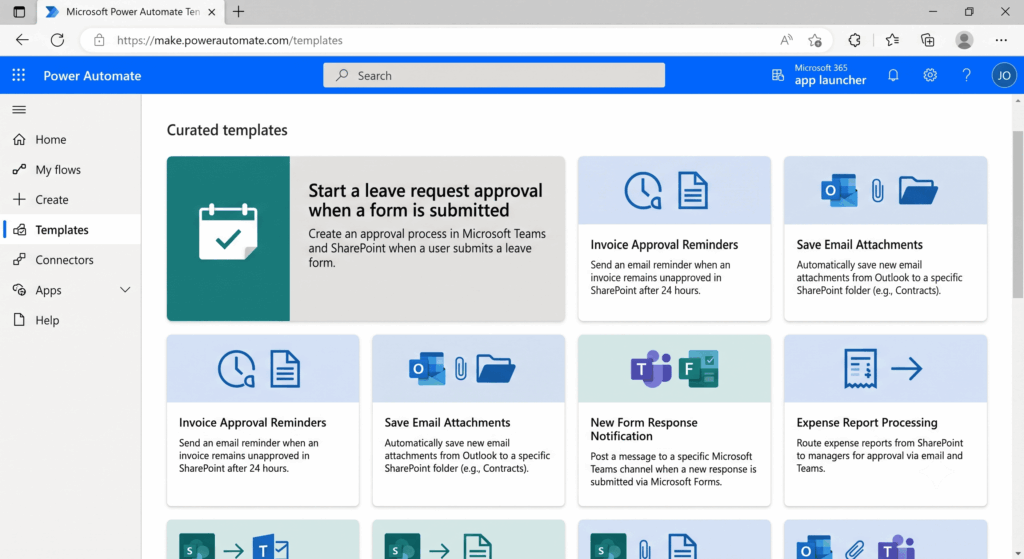
Power Automate lets you build simple, no-code workflows that move information from one step to the next automatically — without a developer. Common use cases for Nigerian offices include:
- Routing leave requests or expense approvals to the right manager automatically
- Sending a reminder when an invoice hasn’t been approved after 24 hours
- Automatically saving email attachments (like signed contracts) into the correct SharePoint or OneDrive folder
- Notifying a team channel in Teams the moment a new form response comes in
You’ll find it as its own app inside Microsoft 365 (or search “Power Automate” from the app launcher), with pre-built templates you can adapt in minutes rather than build from scratch.
2. Microsoft Lists — Replace the Shared Excel Sheet
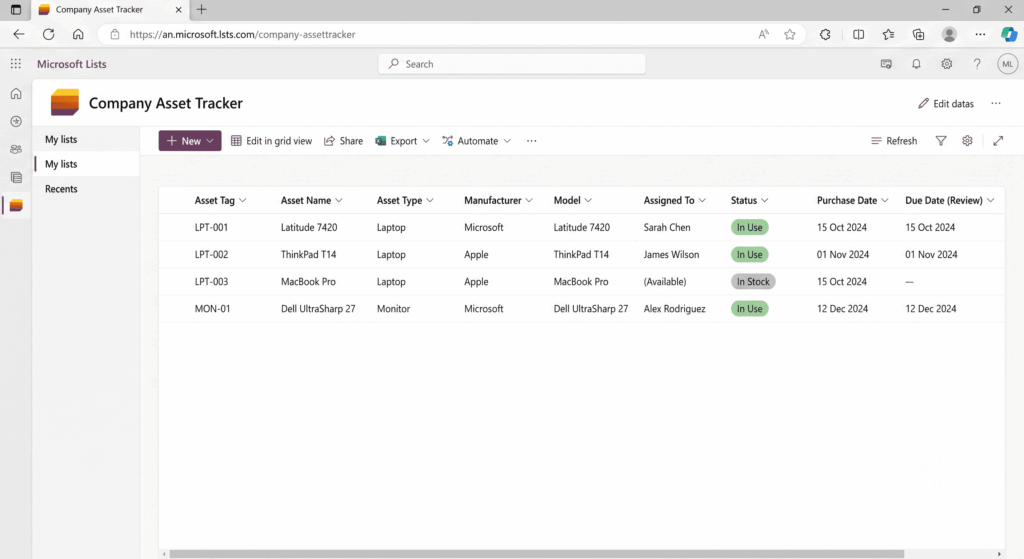
Most offices still track requests, assets, or tasks in an Excel file emailed back and forth — which quickly leads to duplicate entries, outdated versions, and “wait, who has the latest copy?” confusion. Microsoft Lists gives you the same spreadsheet-like structure, but as a shared, always-current system with proper columns, statuses, due dates, and automatic alerts when something changes.
Typical uses: tracking company laptops and who has them, logging IT support requests, managing a recruitment pipeline, or running a simple project tracker that the whole team sees updated in real time.
3. Outlook Quick Steps — One Click Instead of Five
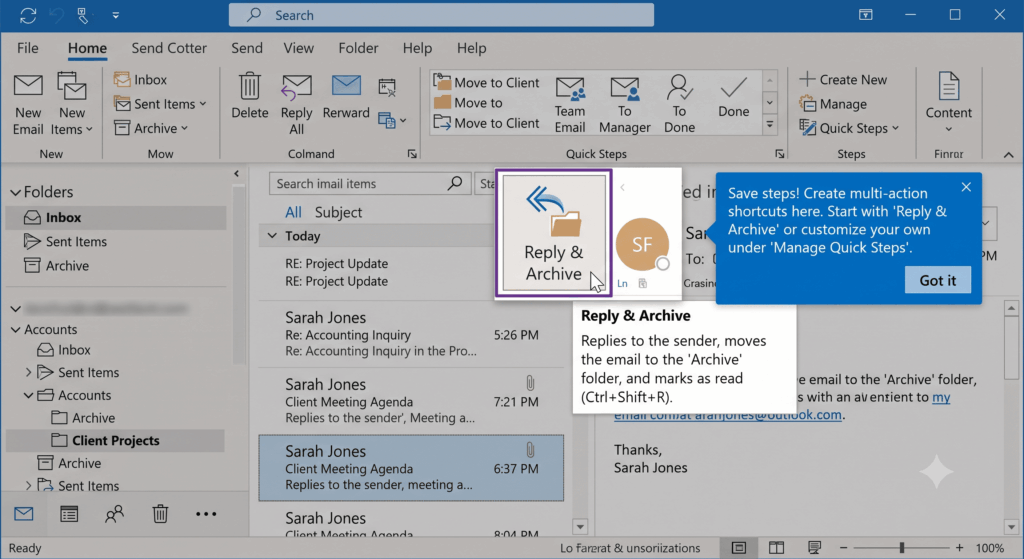
If your team handles a high volume of email, Quick Steps can save several minutes a day per person. Instead of manually replying, then moving a message to a folder, then flagging it, then marking it read — Quick Steps bundles all of that into a single click.
Common examples: “Reply & Archive,” “Forward to Accounts & Flag,” or “Move to Client Folder & Mark Read.” It’s built into Outlook already; you just need to set up the shortcuts once under the Home tab.
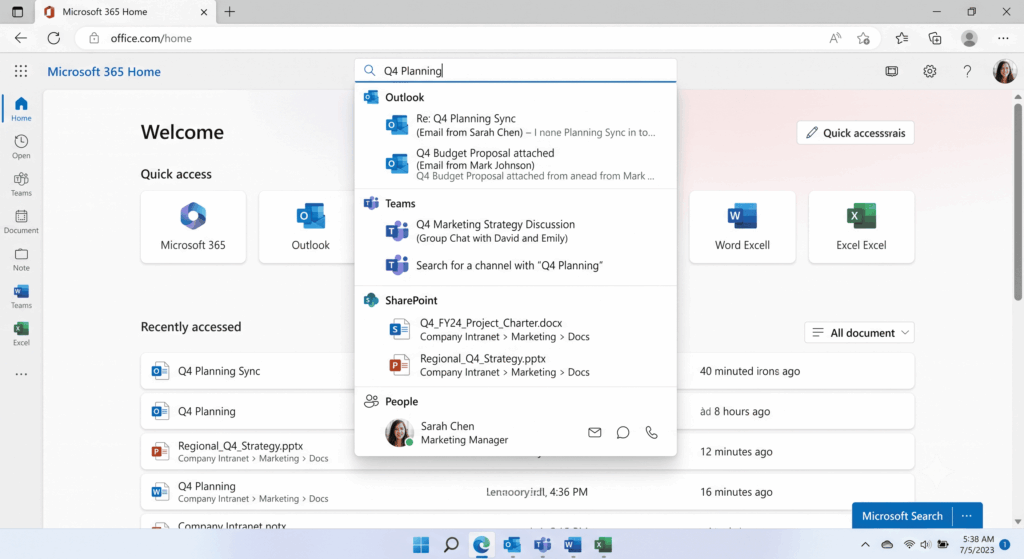
4. Microsoft Search — One Search Bar for Everything
Instead of jumping between Outlook, Teams, and SharePoint to hunt for a file, a conversation, or a colleague’s contact details, Microsoft Search lets employees search across all of it from one bar — available at the top of any Microsoft 365 app, or with the Alt+Q shortcut.
For a company with years of email threads and shared documents, this alone can save meaningful time that would otherwise go into manually digging through folders or scrolling old email chains.
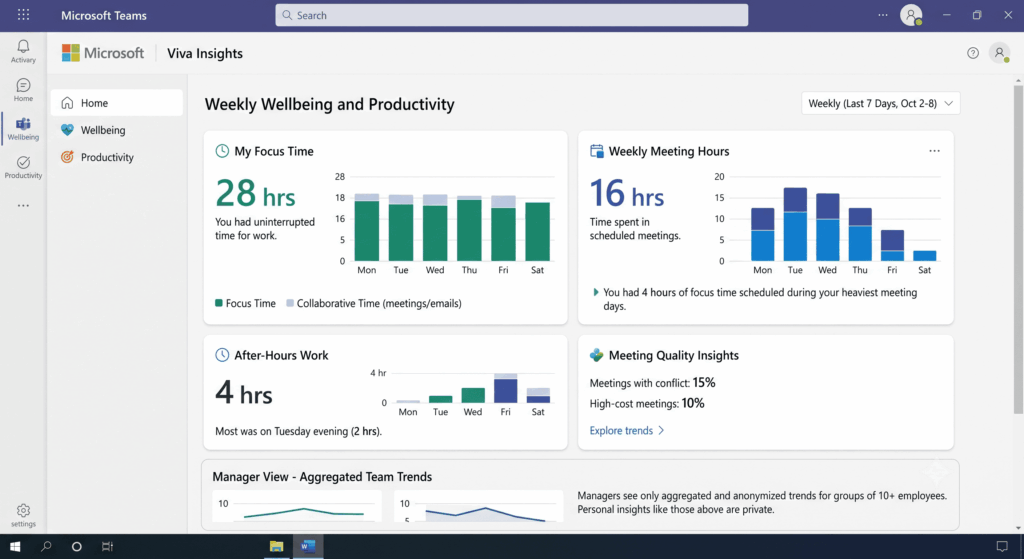
5. Viva Insights — See How Your Team Actually Works
Viva Insights shows patterns like meeting overload, after-hours work, and how much uninterrupted “focus time” people actually get in a week. Used well, it helps managers spot burnout risk before it becomes a resignation, and helps employees protect blocks of quiet time for real work instead of back-to-back calls.
Most companies never go past the default setup — worth noting that personal insights are private to each employee, while managers only see aggregated, anonymised trends at the team level, so it’s not a surveillance tool.
At a Glance: What Each Feature Replaces
| Feature | Replaces / fixes | Where to find it |
| Power Automate | Manual approval chasing, repetitive email/file tasks | App launcher → Power Automate, or the Teams app |
| Microsoft Lists | Shared Excel trackers emailed back and forth | App launcher → Lists, or add as a Teams tab |
| Outlook Quick Steps | Repeating multi-click email actions | Outlook → Home tab → Quick Steps |
| Microsoft Search | Digging through Outlook/Teams/SharePoint separately | Search bar at the top of any Microsoft 365 app (Alt+Q) |
| Viva Insights | No visibility into meeting load or burnout risk | App launcher → Viva Insights, or the Teams app |
Why These Features Go Unused
The reason is simple: most businesses buy Microsoft 365 for the basics — email, Word, Excel, Teams — and never train staff on anything beyond that. The result is that companies pay for a full digital workplace platform but use only a fraction of its value.
For Nigerian companies looking to get more from their subscription, the first step is a short internal review: list what’s already included in your current plan, match it against real day-to-day friction points (approvals, tracking, email overload, scattered files), and train staff on the two or three features that would help most. None of this requires buying new software — it’s already part of what you’re paying for.
Frequently Asked Questions
What is Power Automate used for in Microsoft 365?
It’s a no-code tool for automating repetitive multi-step tasks — like routing approvals, sending reminders, or moving files — without needing a developer to build it.
Is Microsoft Lists better than Excel for tracking tasks?
For a single person working alone, Excel is fine. For a team that needs one shared, always-current view with alerts and status tracking, Microsoft Lists avoids the duplicate-copy and version-confusion problems that come with emailing spreadsheets back and forth.
Do these features cost extra on top of our Microsoft 365 subscription?
No — all five are already included in standard Microsoft 365 Business plans. The cost most companies are missing isn’t software, it’s the time spent on staff training and setup.
How do I find out which Microsoft 365 features my team isn’t using?
A short internal audit — reviewing your current plan against your team’s daily workflows — is usually enough to spot 2–3 quick wins. This is exactly the kind of review we run for clients.
| Ready to get more out of the subscription you’re already paying for? → Book a free Microsoft 365 feature audit and staff training session |